
Windows
On Windows, benches run inside WSL 2, never on Windows itself. Two small programs bring them to the Windows side:
benchbar.exe, the shim: every command forwards tobenchbarinside the distro, sobenchbar.exe status,up,downanddoctorwork from PowerShell.- BenchBar Tray, a notification area app: the runner shows the state of your benches, and a click opens them.
BenchBar for Windows is in beta. It works, and you may find rough edges. The tray and the window say so: a Beta pill, the window title “BenchBar (Beta)” and a banner that you can dismiss. Both programs are not signed yet. On our Windows 11 test PC (Smart App Control off) the one line installer needed no click through a warning. Smart App Control, when it is on, blocks unsigned programs: see Before you install and Signing and verification.
What you need
- Windows 11, or Windows 10 version 22H2 (build 19045) or later, with virtualization on in the firmware.
- Smart App Control off (see Smart App Control).
- For the tray: the .NET 10 Desktop Runtime. The installer offers to
install it with
winget(winget install --id Microsoft.DotNet.DesktopRuntime.10 -e).
Everything else the first run wizard sets up for you (see
First run): WSL 2, Ubuntu 24.04 with systemd, your Linux
user, benchbar inside the distro, linger, the keepalive task and
benchbar.exe on your PATH. To do it by hand instead, see
Set up from PowerShell.
Before you install
What Windows may show depends on how the files reach your PC. The one line installer is the quiet route. A zip you download yourself is marked by Windows as “from the internet”, and that mark brings dialogs.
| Route | What Windows may show | What to do |
|---|---|---|
One line installer (irm ... | iex) | On our Windows 11 test PC (one PC, Smart App Control off): nothing. No SmartScreen dialog, no Defender block and no administrator prompt. The files it writes carry no internet mark, and starting them shows no dialog. | Nothing. |
Zip, started with .\install.ps1 | With the default execution policy: “cannot be loaded because running scripts is disabled on this system”. Unblock-File does not change that. | Start it with powershell -ExecutionPolicy Bypass -File .\install.ps1. |
| Zip saved by a browser | Edge saves it without a warning, but marks it as downloaded (Zone.Identifier, ZoneId 3). Extract All in Explorer marks every file in it. Expand-Archive marks none. | Nothing, if you run the installer from the zip. It removes the mark from the files it installs. |
| Starting a marked program yourself | “Open File - Security Warning: The publisher could not be verified. Are you sure you want to run this software?” with Run and Cancel. The dialog can open behind other windows. | Click Run. If nothing seems to happen, look for a flashing icon in the taskbar. |
| The tray without the .NET runtime | Microsoft’s dialog “You must install .NET Desktop Runtime to run this application.” | Install the runtime: see If Windows blocks it. |
The installer removes the internet mark from every file it installs, for
every route, so the programs in the install folder start without the
Open File dialog. It checks every file against SHA256SUMS first.
Smart App Control
Smart App Control is a Windows 11 feature. When it is on, it blocks
programs that are not signed and have no known reputation, and it has no
exception for one program. BenchBar is not signed yet, so with Smart App
Control on, Windows blocks benchbar.exe and BenchBar Tray.
To check: open Windows Security, then App & browser control, then Smart App Control. It says On, Evaluation or Off.
What the installer does:
- On: it stops before it downloads or writes anything, says what Smart App Control is and that BenchBar is not signed yet, and links here.
- Evaluation: it warns and goes on. Windows may turn Smart App Control on later and block BenchBar then.
- Off, or a Windows without it: it goes on.
To use BenchBar while it is on, you have to turn it off in Windows Security > App & browser control > Smart App Control settings. On some versions of Windows you cannot turn it back on without resetting Windows. Think about that first.
The installer also stops early when PowerShell runs in Constrained Language Mode, which a company policy can set. Ask whoever manages the PC.
First run
When BenchBar Tray starts and finds no bench, it opens the BenchBar
window at Welcome: Set Up a New Bench, I Already Have a Bench or
Just the Command Line Tool. + > New Bench opens it again later.
The command line tool step runs the
Linux installer of the same release
as benchbar.exe inside the distro (install.sh from the v<version>
tag, with --version v<version>); a development build uses main. To
do it by hand, run in Ubuntu:
curl -fsSL https://raw.githubusercontent.com/askysh/benchbar/main/install.sh | bash.
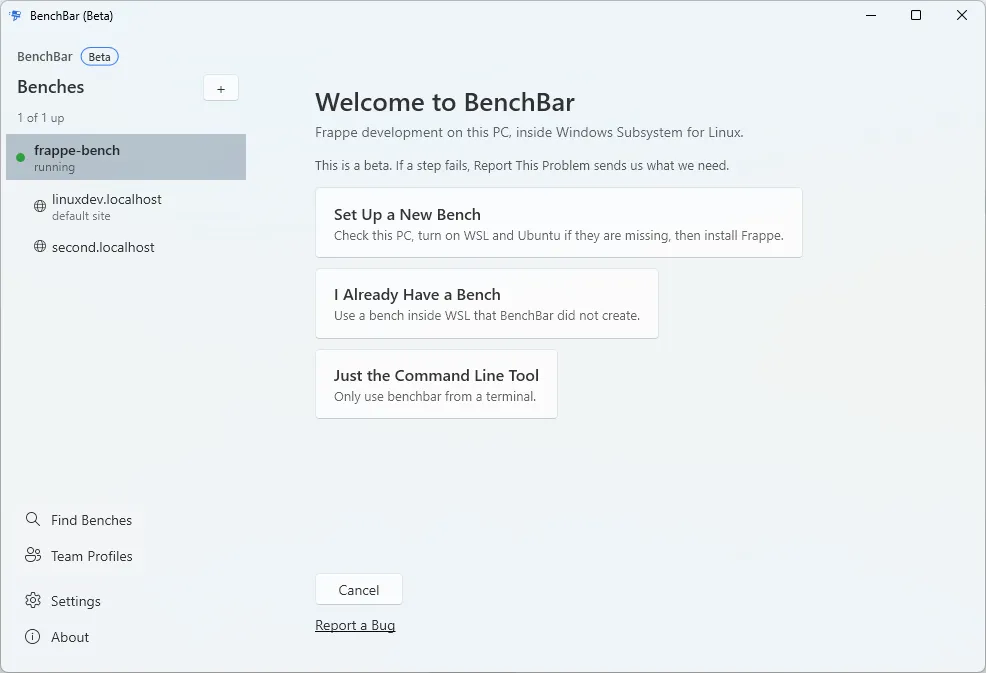
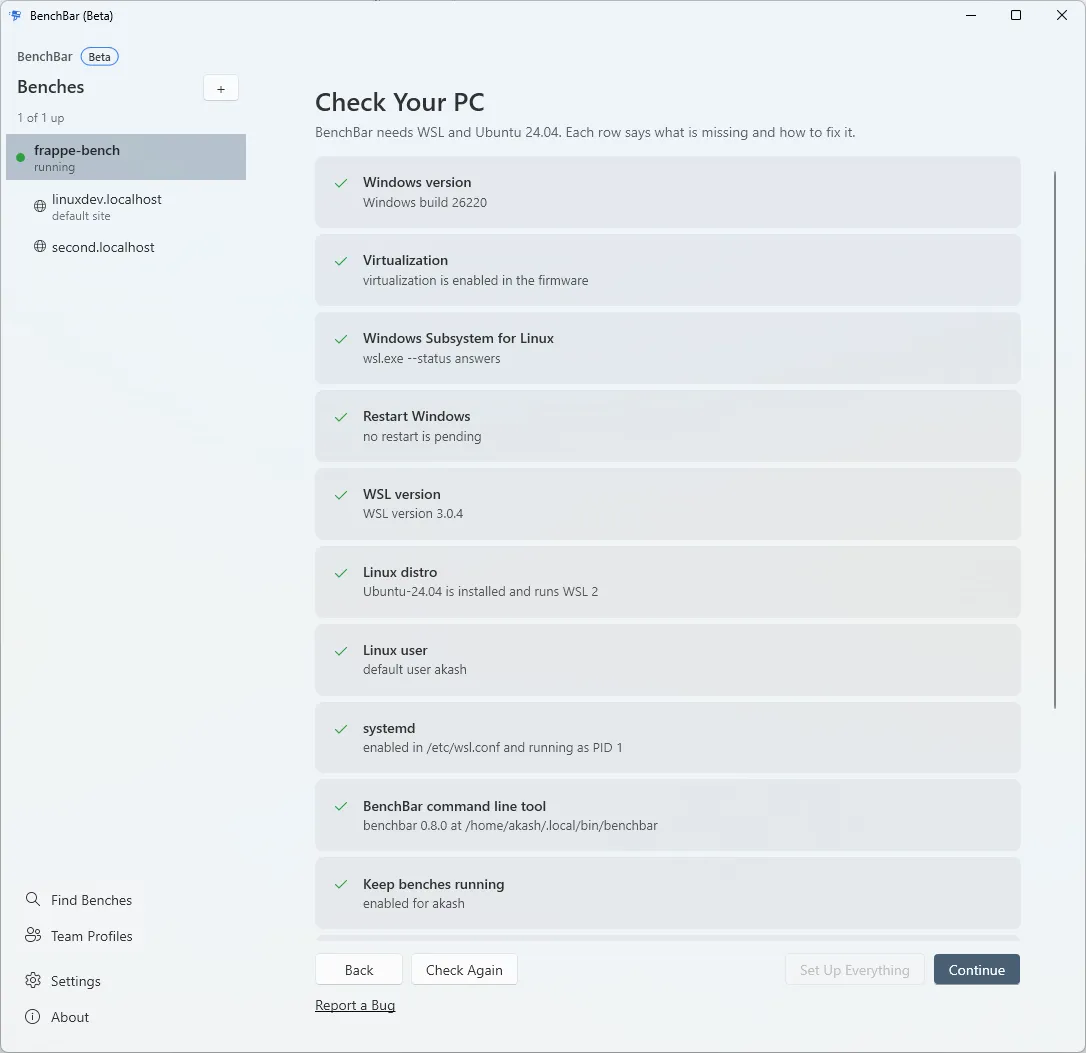
- Check Your PC lists every step with its state and a button to fix it: Windows version, virtualization, WSL, a pending restart, WSL version, the distro, the Linux user, systemd, the command line tool, linger, keepalive, the WSL idle settings and PATH. Set Up Everything runs the missing steps in order.
- Turning on WSL is the only step that needs administrator rights. It has a shield on its button, and Windows asks for permission once. If you say no, nothing changes and you can try again.
- When Windows needs a restart, Restart Now asks first, restarts in
15 seconds (
shutdown /acancels it) and opens the wizard where it was when you sign in again. - Linux User: the name and password of your user in Ubuntu. The
password is used to create the user and later for the
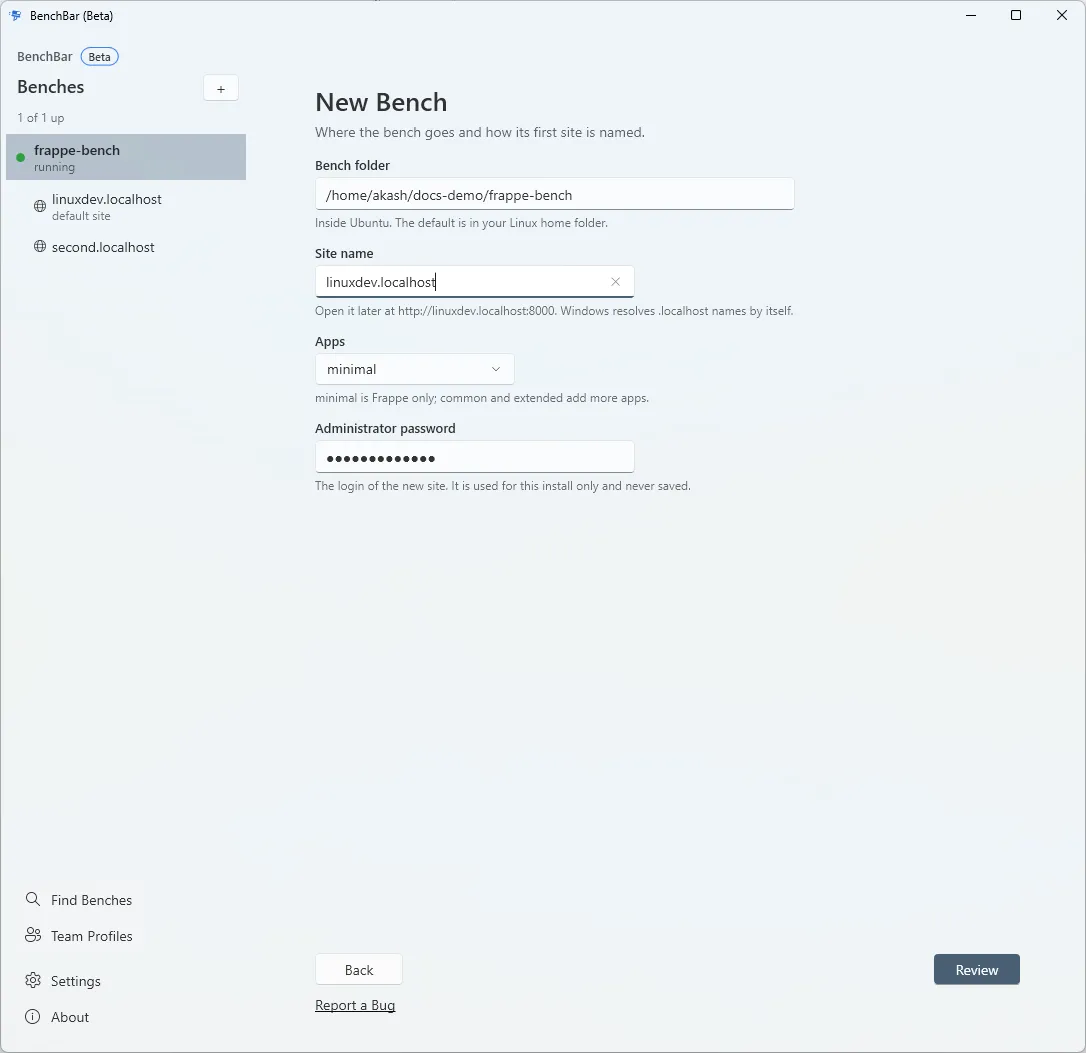
sudosteps of the install, and is never stored. - New Bench: the folder (default
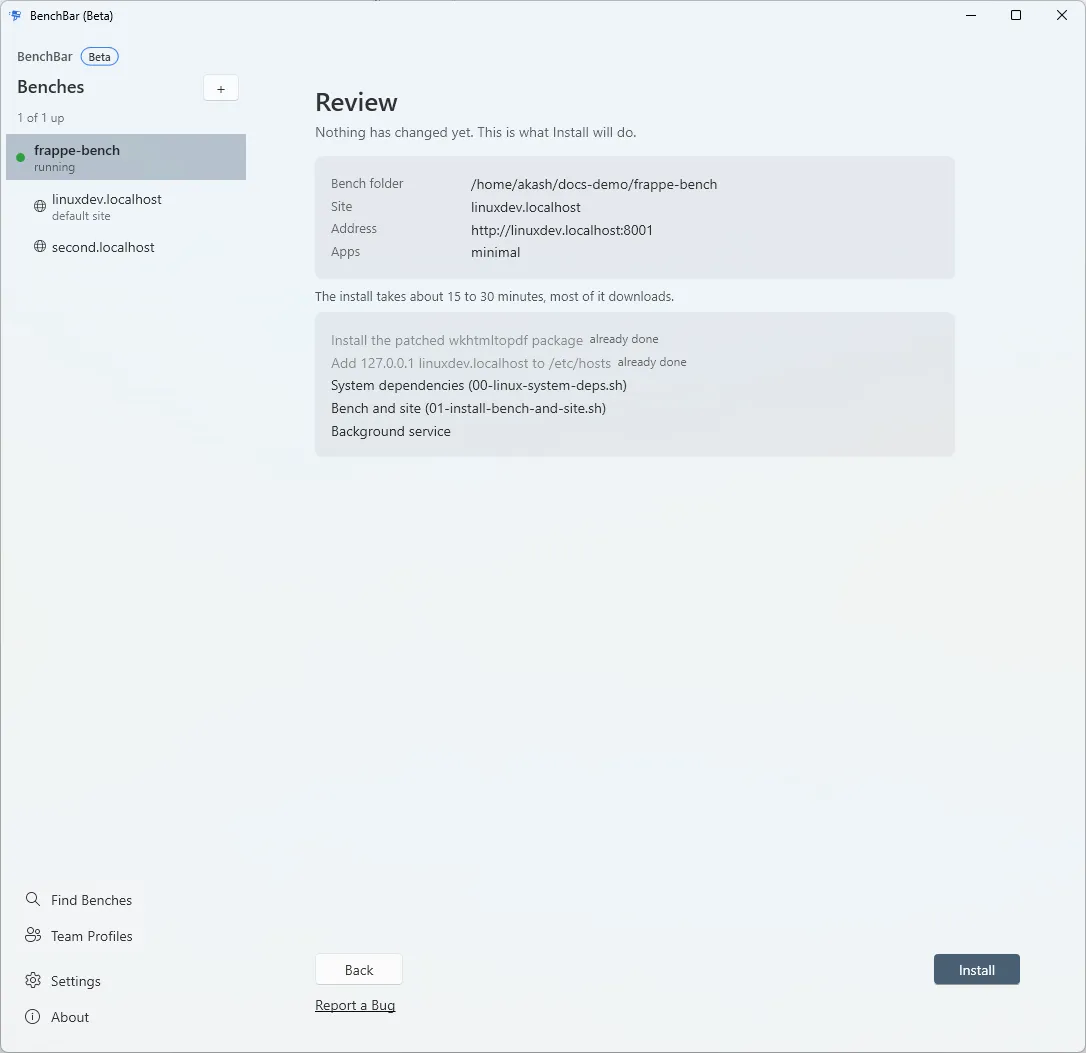
~/frappe-bench), the site and the Administrator password; Review shows the plan ofbenchbar install --dry-run, with the steps that use sudo marked. - Install streams every step. Stop, Retry and Open Log are there; when MariaDB already has a root password BenchBar does not know, a field asks for it.
- Done: Open Site, notifications, Open BenchBar at logon, and the
claude mcp add benchbar -- benchbar.exe mcpline to copy.
Some rows in Check Your PC are advice: linger, keepalive, the WSL idle settings and PATH. They never block Continue. The other rows must be ok first.
For a distro whose user the wizard did not create, BenchBar asks for your Linux password right before the steps that use sudo.
Every wizard page has a Report a Bug button in its footer, and a failed step has Report This Problem next to it. See Report a bug.
Set up from PowerShell
The wizard runs these, and you can too:
benchbar.exe setup check --json # every step, read onlybenchbar.exe setup check --json --probe # also starts a stopped distro to check inside itbenchbar.exe setup run distro_install --jsonlsetup run takes one action at a time: wsl_enable (asks Windows for
permission), wsl_update, distro_install, distro_wsl2 (converts a
distro that runs as WSL 1 to WSL 2; it stops that distro), distro_user
(the password in BENCHBAR_SETUP_PASSWORD), systemd, cli_install
(installs the command line tool in the distro, or updates an older one), linger,
keepalive, wslconfig and path. With --jsonl it prints only JSON
lines, and ends with one done line (exit, changed, reboot_required,
cancelled, warnings, next_actions). setup never runs wsl --shutdown or
--unregister; systemd, distro_user and distro_wsl2 stop only that one distro.
The older commands still work: benchbar.exe path install,
benchbar.exe adopt-distro, benchbar.exe keepalive install and
benchbar.exe wslconfig --apply --yes.
Install
In PowerShell, as yourself (no administrator rights):
irm https://raw.githubusercontent.com/askysh/benchbar/main/install.ps1 | iexThe installer checks this PC first (the CPU, PowerShell’s language mode
and Smart App Control), then looks at the GitHub
releases for the newest published one that has a Windows zip for your CPU
(x64 or Arm64). It checks the zip against the release’s
benchbar-windows-<version>-SHA256SUMS.txt and installs it to
%LOCALAPPDATA%\Programs\BenchBar. Then it:
- removes the internet mark from the installed files;
- puts that folder on your user PATH (
benchbar.exe path install); - checks the .NET 10 Desktop Runtime and, when
wingetis there, offers to install it (Windows asks for permission); - makes a Start menu shortcut named BenchBar, and offers a Startup shortcut so the tray opens at logon;
- runs
benchbar.exe doctor; - starts the tray, which opens the setup, and prints what to do next.
The tray is not started when the .NET runtime is still missing, and the installer says why. It writes nothing inside a WSL distro; the final doctor starts the distro if it is stopped. It uses your Windows proxy settings, with your Windows sign in, for its downloads. When GitHub’s API says too many requests, it falls back to the release page, which needs no API call.
After it finishes, find BenchBar in the Start menu, or as the tray icon
near the clock. Windows may hide that icon under the ^ arrow. In a
terminal, benchbar.exe setup check shows what is ready.
Run as a file it takes -Version X.Y.Z (a given release), -NoTray
(only benchbar.exe: no runtime check, no shortcuts, no tray), -Yes (no
questions), -Zip PATH (a zip you downloaded) and -Uninstall. To pass
them without saving a file, run the script as a script block, which sets
nothing in your session:
& ([scriptblock]::Create((irm https://raw.githubusercontent.com/askysh/benchbar/main/install.ps1))) -Version X.Y.ZPiped into iex, set BENCHBAR_VERSION, BENCHBAR_NO_TRAY=1,
BENCHBAR_YES=1, BENCHBAR_ZIP=PATH or BENCHBAR_UNINSTALL=1 first.
These variables stay set in that PowerShell window, so remove them
afterwards (for example Remove-Item Env:BENCHBAR_VERSION).
To run it as a file, download install.ps1 and start it with
powershell -ExecutionPolicy Bypass -File .\install.ps1 .... The default
execution policy refuses a script file, and Unblock-File does not
change that.
Without the script: download benchbar-windows-<version>-amd64.zip (or
-arm64.zip) from the releases,
check it (see Verify a download), unpack it into a
folder of your choice and run benchbar.exe path install from there.
A test build you were sent
Every zip carries install.ps1, so a build that is not on a release
installs the same way, from its own folder:
-
Unpack the whole zip (right click, Extract All) into a new folder, for example in Downloads.
benchbar-windows-<version>-amd64.zipis for Intel and AMD PCs,-arm64.zipfor Arm PCs. -
Open PowerShell in that folder and run:
powershell -ExecutionPolicy Bypass -File .\install.ps1
It checks every file against the SHA256SUMS in the zip, installs to
%LOCALAPPDATA%\Programs\BenchBar as above, and ends with
benchbar.exe doctor. To keep the zip unpacked, pass it instead:
.\install.ps1 -Zip .\benchbar-windows-<version>-amd64.zip. A checksums
file next to the zip is checked too when there is one.
Extract All in Explorer marks every file as downloaded. The installer removes that mark from the copies it installs, so the programs start without a dialog. Start a program from the unpacked folder yourself, and Windows shows the Open File dialog (see Before you install).
Verify a download
Each release has benchbar-windows-<version>-SHA256SUMS.txt. Compare it
with the zip:
(Get-FileHash .\benchbar-windows-<version>-amd64.zip -Algorithm SHA256).HashThe installer does this for you. Releases after 0.8.2 also carry a build provenance attestation, made by the release workflow. It proves that the zip was built from this repository by GitHub Actions. With the GitHub CLI:
gh attestation verify benchbar-windows-<version>-amd64.zip -R askysh/benchbarIf Windows blocks it
Smart App Control says BenchBar is blocked, or the installer stops with “Smart App Control is on”. See Smart App Control.
“Open File - Security Warning: The publisher could not be verified.”
The file carries an internet mark, for example because you started a
program from an unpacked zip. Click Run. The dialog can open behind
other windows. The installer removes the mark from what it installs, so
you should not see this for the installed programs. If you do, run the
installer again, or run
Get-ChildItem "$env:LOCALAPPDATA\Programs\BenchBar" -Recurse | Unblock-File.
Microsoft Defender or another antivirus removes a file, or the
installer says a file “contains a virus or potentially unwanted software”
(error 0x800700E1). BenchBar is not malware, but a new program without a
signature is sometimes flagged by mistake. On our Windows 11 test PC,
Defender scans of the zip and the install folder were clean, and Defender
sent benchbar.exe to Microsoft for cloud analysis once.
- Open Windows Security > Virus & threat protection > Protection history.
- Find the BenchBar item, choose Actions, then Allow on device.
- Run the installer again.
To tell Microsoft it is a false positive, send the file at https://www.microsoft.com/wdsi/filesubmission.
“You must install .NET Desktop Runtime to run this application.” BenchBar Tray needs the .NET 10 Desktop Runtime, and this dialog is Microsoft’s. Install it, then start BenchBar again:
winget install --id Microsoft.DotNet.DesktopRuntime.10 -eWithout winget, download the .NET 10 Desktop Runtime (x64 or Arm64,
like your PC) from https://dotnet.microsoft.com/download/dotnet/10.0.
The installer offers to run the winget line and does not start the
tray while the runtime is missing.
Signing and verification
The Windows programs (benchbar.exe, BenchBarTray.exe and the tray’s
own DLLs) are not signed yet. In practice that means: Smart App Control
blocks them, and a program you start from an unpacked zip shows the “Open
File - Security Warning” dialog. See Before you install
for what to expect on each route.
You can still check what you download:
- Every release has
benchbar-windows-<version>-SHA256SUMS.txt, and every zip holds aSHA256SUMSfile. The installer checks them. - From the next release on, each zip also has a build provenance attestation that you can verify. See Verify a download.
- Check a signature in PowerShell:
Get-AuthenticodeSignature "$env:LOCALAPPDATA\Programs\BenchBar\benchbar.exe"showsNotSignedtoday.
Privacy: neither program sends data anywhere except to GitHub’s release list, for the update check described under Settings. Report a Bug writes its zip on your PC, and sends nothing until you post the issue yourself.
The tray
The runner in the notification area sleeps when the benches are stopped, runs while one is up, stumbles when a bench crashes and holds a paused pose when the crash guard paused it or its ports are taken. With Windows animation effects off it shows still poses. It is tinted for a light or a dark taskbar.
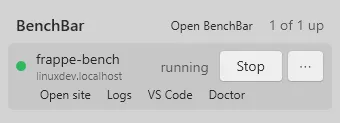
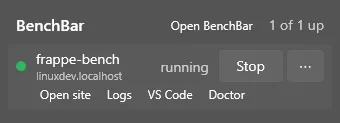
Left click opens the flyout, one row per bench:
- the state, the name and the default site, with Start or Stop, and Restart in the ⋯ menu;
- Open site in your default browser (see
*.localhostnames); - Logs: the last lines of the bench log in a read only window, with
Clear, Copy and Open in Terminal (Windows Terminal, which follows the
log with
tail -f); - VS Code: the bench folder through the WSL extension
(
code --remote wsl+DISTRO PATH). Withoutcodeon PATH the row says how to get it; - Doctor: the checks of
benchbar doctorwith their fix lines and a Copy button. It changes nothing.
Esc closes the flyout, Enter on a row opens the site.
Right click opens the menu: Open BenchBar, Settings, Open BenchBar at logon (a shortcut in your Startup folder, no admin needed), Notifications, Appearance (System, Light or Dark), Runner (the seven built in runners, as on the Mac, and your own), Check for Updates, Help, Report a Bug and Quit.
The BenchBar window
Open BenchBar (the tray menu, the button at the top of the flyout, or a double click on the tray icon) opens the window. The sidebar lists your benches with their sites, then Find Benches and Team Profiles, a + menu (New Bench, I Already Have a Bench), and Settings and About at the foot. A banner says when a newer release is out, and a beta banner stays until you dismiss it once. Ctrl+N starts a new bench, Ctrl+, opens Settings and F5 checks again.
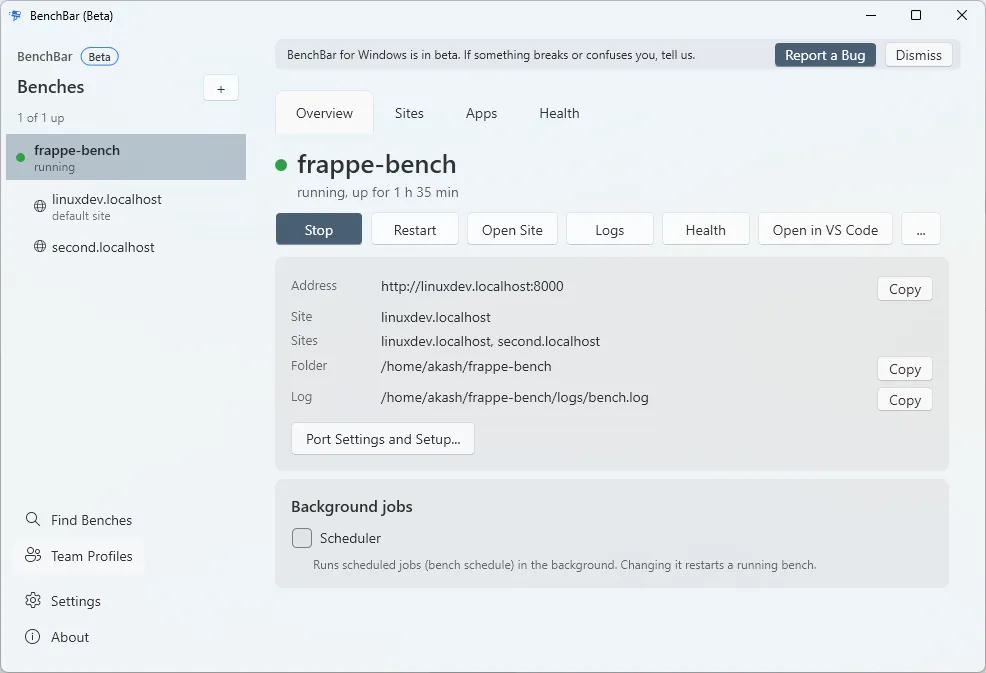
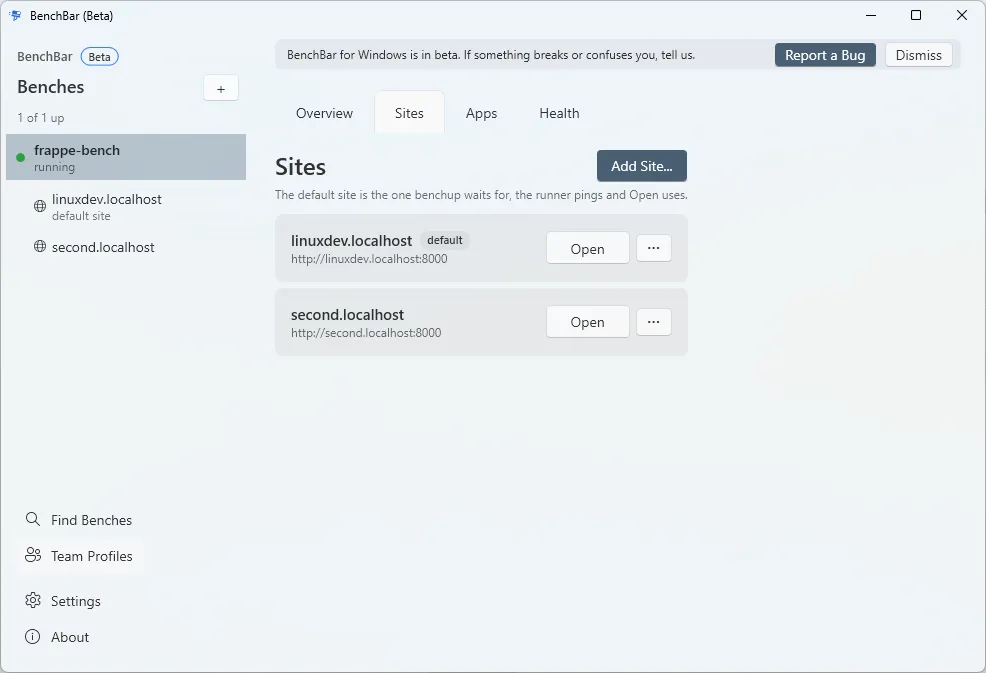
A bench has four tabs:
- Overview: state, address and uptime, Start or Stop, Restart, Open
Site, Logs, Health and Open in
, and a line that says why a bench is stopped and what to do next. The Scheduler switch, the lockfile state, Port Settings and Setup, and Console and Database (in Windows Terminal) are here too. - Sites: Add Site (the plan first, then the Administrator password
goes to the CLI in its environment), Make Default, Back Up (with or
without files), Backups…, Restore…, Drop Site… (type
the site’s name to confirm) and Open. Browsers open
*.localhostnames without a hosts line, so BenchBar never edits a hosts file (see*.localhostnames). - Apps: Add App (from a git URL, with a branch or a commit, and the sites to install it on), Update after the dry run, Install on a site, focus pins and Check Remotes. An app with local changes cannot be updated from the window.
- Health: the doctor checks with the Windows setup checks, Copy fix, and Repair, which shows the plan first and asks for your Linux password once when a step uses sudo.
Start and Restart check the bench’s ports first, from the window and from the flyout. A port another program holds stops the start with the reason and Review Port Conflict; BenchBar never stops that program.
Find Benches scans a folder inside the distro (default your Linux
home), adds the benches it finds, sets up their ports and their
management. Team Profiles creates a profile from a bench, imports or
subscribes to one, exports, updates, checks access and removes. A Windows
file path for import or export is converted with wslpath.
The log window filters by process, searches, follows the log (while the
window is open), shows the previous log and opens tail -f in Windows
Terminal.
Settings: Open BenchBar at logon, notifications, check for updates when the window
opens, the distro (switching runs benchbar.exe adopt-distro), the editor
(VS Code, Cursor or VS Code Insiders), the command line tool’s path, and
the tray’s appearance and runner. About: the versions of the tray,
benchbar.exe and the CLI inside the distro, Check for Updates, Report a
Bug and the MCP line.
When a bench crashes, is paused by the crash guard or meets a port conflict, the tray shows one Windows notification with the bench and the command that fixes it. It does not repeat it until the state changes again.
When the distro is stopped
The tray asks WSL which distros run (wsl.exe --list --running), which
does not start one, and asks benchbar.exe status only while the distro
runs. A stopped distro shows the sleeping runner and a Start button
in the flyout, which starts benchbar.exe keepalive run. This keeps the
tray from waking a distro that WSL shut down after its idle time.
One keepalive runs at a time, for one distro. While it keeps one distro awake, Start cannot start a second distro, and the tray says so. Switch the distro in Settings, or stop the other keepalive first. This is a limit of the beta.
Settings
The tray keeps its settings under a tray key in
%LOCALAPPDATA%\BenchBar\config.json, the file benchbar.exe uses for
the distro. Custom runners go in %LOCALAPPDATA%\BenchBar\runners\<id>\,
in the format of Custom runners; the frames are scaled to
the notification area’s square slot.
Check for updates when the BenchBar window opens is on by default. When the window opens, the tray asks GitHub for the latest release, at most every six hours, and shows a banner when a newer one is out. Turn it off in Settings to stop those checks. Check for Updates in the menu and About always asks GitHub, and asks before it opens the release page.
What it costs
At rest the tray polls benchbar.exe status every 30 seconds while a
bench runs and backs off to every 5 minutes when nothing is up. It
starts nothing at all while the computer sleeps or is locked.
Measured on a Ryzen 7 6800H laptop: about 17 MB of private memory and under 0.1 percent of one core at rest, 0.6 percent while the runner runs. Once the flyout has been open, WPF keeps its graphics stack loaded and the tray stays at about 43 MB.
Report a bug
Report a Bug is in the tray menu, in About, in the beta banner, in the footer of every wizard page, and next to each failed step (Report This Problem). All of them do the same thing:
- They run
benchbar.exe report-windows --json. It writes a redacted zip to%LOCALAPPDATA%\BenchBar\reportsand keeps the newest 10. - A small window says that the report is ready. It selects the zip in Explorer and opens a GitHub issue with the Windows bug form filled in (versions, Windows edition, distro and what you did). Show Zip and Open Issue do this again, and Copy Path copies the zip path.
- Drag the zip from Explorer into the last box of the form, say what happened, and submit.
The zip holds the versions, the Windows edition and build, the WSL status
and distro list, the setup check (run without starting a distro) and,
when the distro runs, the CLI’s own report. User names and home paths
become <user>, and it holds no passwords. The full list is in
windows/shim/README.md.
Report a Bug works with no WSL, with a stopped distro (it never starts
one) and with no CLI installed. If benchbar.exe cannot start, the tray
writes a smaller zip with its own log only.
For a security problem, do not use the form. See SECURITY.md.
Update
In the app: when a newer release is out, the BenchBar window, the tray menu and About show Update Now. It runs the update in its own window, closes BenchBar, and starts it again when the update is done.
In a terminal:
benchbar.exe self-updateIt shows the version you have and the newest release, asks once, then
updates all of BenchBar for Windows to that release: benchbar.exe, the
tray app and the BenchBar CLI inside WSL. It runs the one line installer for
you, so the new files are checked against the release’s SHA256 sums and
Windows shows no SmartScreen dialog for them. The tray app closes and starts
again. It ends with one line for each part. Your settings, benches and sites
stay as they are.
benchbar.exe self-update --checkonly looks: the version you have, the newest release and the CLI in WSL.--jsongives the same as JSON.--yesdoes not ask.--version X.Y.Zinstalls that release, also an older one.- With no distro set up yet, the CLI part is skipped: the setup installs it.
- BenchBar from the Microsoft Store is updated by the Store, and
self-updatechanges nothing there.
Running the one line installer again does the same for benchbar.exe and
the tray. It finds the newest release that has a Windows zip, closes the
tray (it asks the tray to close first), replaces the files, removes files
the new version no longer has, and starts the tray again when it was
running. An update keeps your choices: it adds no Startup shortcut and does
not open the setup again. It ends with the version it updated from and to.
It does not change anything inside the distro: run benchbar.exe self-update afterwards, or benchbar.exe setup run cli_install, to bring
the CLI in WSL to the same release. benchbar.exe setup check and
benchbar.exe doctor say when the two differ.
Uninstall
Uninstalling BenchBar for Windows removes the two programs and what belongs to them. It keeps WSL, the distro and your benches.
powershell -ExecutionPolicy Bypass -File .\install.ps1 -UninstallRun it from a copy of install.ps1 (a zip carries one, and so does the
install folder of a full install), or through the one line installer with
$env:BENCHBAR_UNINSTALL = '1' set first. It asks once, and -Yes skips
the question. With no terminal to answer on (input is redirected) and no
-Yes, the answer is no and nothing is removed: add -Yes (or set
BENCHBAR_YES=1) to confirm. Then it:
- closes the tray;
- removes the keepalive task (
benchbar.exe keepalive remove); - removes the Start menu shortcut, the Startup shortcut and the setup
resume shortcut. It removes only a
.lnkfile in the Start menu, the Startup folder or the install folder that points to the installed tray app; any other shortcut stays; - removes the install folder from your user PATH;
- removes the files it installed (the list is
.installed-files.txtin the install folder) and the folder, when it is empty.
It never touches WSL, your distro, your benches or
%USERPROFILE%\.wslconfig. Your settings, runners and reports stay in
%LOCALAPPDATA%\BenchBar. Delete that folder too when you no longer want
them.
To do it by hand instead:
- Run
benchbar.exe keepalive removewhilebenchbar.exeis still there. It removes the keepalive task. - Quit the tray from its right click menu.
- Delete the BenchBar Tray shortcut in your Startup folder (open it
with Run,
shell:startup), the BenchBar Setup Resume shortcut if there is one, and the BenchBar shortcut in the Start menu (Run,shell:programs). - Remove
%LOCALAPPDATA%\Programs\BenchBarfrom your user PATH: runbenchbar.exe path removewhilebenchbar.exeis still there, or open Environment Variables (search for it in Start), edit the userPathand delete the entry for that folder. - Delete the folder
%LOCALAPPDATA%\Programs\BenchBar.
Removing the distro
To remove the Linux distro as well, run this in PowerShell:
wsl --unregister Ubuntu-24.04Warning: this deletes everything inside the distro, including every bench,
site and database in it, and it cannot be undone. Copy what you need out
of the distro first. wsl --list --verbose shows the distro names.
*.localhost names
A site on a *.localhost name (for example mysite.localhost:8000)
opens in Edge, Chrome and curl.exe on Windows, because WSL forwards
localhost to the distro. PowerShell’s Invoke-WebRequest, ping and the
Windows resolver do not resolve such a name. In PowerShell, use
curl.exe, with the .exe, because curl is an alias of
Invoke-WebRequest there:
curl.exe http://mysite.localhost:8000curl.exe -H "Host: mysite.localhost" http://localhost:8000The second line asks localhost for the site by its name, which is the
same request.
If you set localhostForwarding=false under [wsl2] in
%USERPROFILE%\.wslconfig, Windows cannot reach any bench at all. Remove
the line, or set it to true, and restart WSL (wsl --shutdown stops
every distro, so stop your benches first).
Troubleshooting
- Docker Desktop is the default distro.
wsl --listcan showdocker-desktopas the default. BenchBar skips it, and the other tool distros that Docker Desktop, Rancher Desktop and Podman add, and uses your Ubuntu. Choose another distro in Settings, or runbenchbar.exe adopt-distro. - The distro runs as WSL 1. Benches need WSL 2. The setup check says
so. Run
benchbar.exe setup run distro_wsl2to convert it. It stops that distro, so stop your benches first. - The distro is not Ubuntu 24.04. Only Ubuntu 24.04 is supported. The
setup check says so. Install it next to the other one with
wsl --install -d Ubuntu-24.04and choose it withbenchbar.exe adopt-distro. - A Windows path as an argument.
benchbar.exe adopt C:\Users\you\benchis accepted as a path: the shim turns a drive path such asC:\...into/mnt/c/..., and a\\wsl.localhost\Ubuntu-24.04\...path of the same distro into its Linux path. Butadoptandinstallrefuse a bench on the Windows file system (errorbench_on_windows_fs), because it is slow and file watching does not work there. Keep benches in the distro’s own file system, under your Linux home. If you accept the problems,--allow-windows-fsoverrides the refusal. - The tray does not open at logon. The tray’s Open BenchBar at logon makes a shortcut in your Startup folder. Windows can switch a Startup entry off in Settings > Apps > Startup. Turn BenchBar Tray on there.
- The PC went to sleep during the setup. Sleep, or a closed lid, stops the steps that run inside WSL. Keep the PC awake (Settings > System > Power) until the wizard says Done. Every step can be run again, so start Set Up Everything again.
What the tray does not do
- It has no
benchbar://links yet, and no CPU source for the runner, so the runner runs at one speed. Team Profiles copies abenchbar://profile/importlink for a team chat, but Windows has no handler for that address yet, so the link does not open BenchBar. - It never reads files inside the distro: every fact comes from
benchbar.exe. - It has no Open as menu yet. From PowerShell,
benchbar.exe site open-as on NAMEturns it on for a site (it asks first), thenbenchbar.exe open --as USERopens the site signed in as that user in your Windows browser. The site needs a*.localhostname, which the Windows browser reaches without a hosts line (see*.localhostnames). See benchbar open. - It cannot join a room. Rooms (
benchbar share) are Mac only for now: WSL 2 does not expose a port to the Wi-Fi by default and Windows has no pf.
Labs
Labs work the same on Windows. benchbar.exe labs list shows them, and the
ones that are not on Windows yet say so. benchbar.exe labs on NAME asks
first in PowerShell. Turning one on is a person’s decision, so an agent with
BENCHBAR_NONINTERACTIVE=1 is refused. See
labs.